Every online cash register needs a protected data storage (CHDÚ, “chránené dátové úložisko”). Which one you choose depends on where sales take place: on a computer, on your own Android device or on a payment terminal. You need no hardware for development.
Storage models
| Storage | What it is | Where it is used |
|---|---|---|
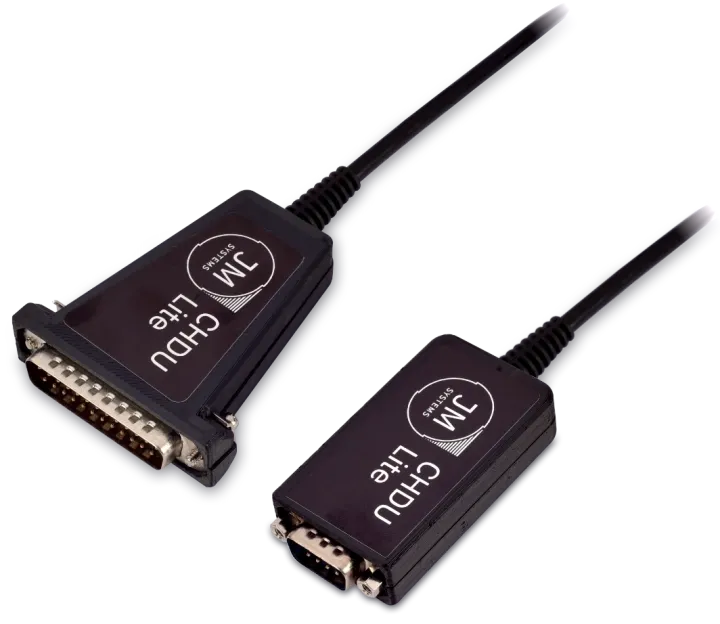
| CHDU Lite | An external device connected to a computer or tablet. The printer connects to it as well. | computer (Windows, macOS, Linux), Android tablet or kiosk |
| SwissBit | A microSD card inside the payment terminal, not visible from outside. | certified payment terminals only |
| CHDU-SK | The predecessor of CHDU Lite. The latest eKasa versions support it too. | same as CHDU Lite |
| In-Memory | A simulated storage inside the application, no hardware. Receipts are “printed” to PDF. | development and testing in the integration environment, on all platforms |
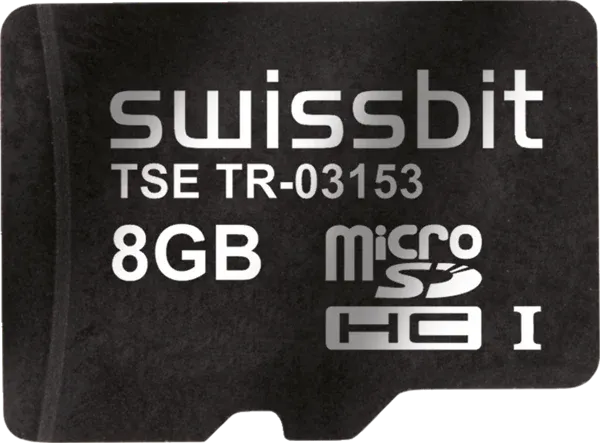
The SwissBit storage is certified only for specific payment terminal models: Sunmi P3 MIX, Sunmi P3h Dual, Ingenico DX4000, Ingenico DX8000 and PAX A920Pro. It therefore cannot be used in your own Android tablet, kiosk or other device; CHDU Lite is intended for those.
Compatibility
| CHDU Lite | CHDU-SK | SwissBit | In-Memory | |
|---|---|---|---|---|
| Windows | yes | yes | no | yes |
| macOS | yes | yes | no | yes |
| Linux | yes | yes | no | yes |
| Android tablet or kiosk | yes | yes | no | yes |
| Certified payment terminal | no | no | yes | yes |
Which storage to choose
flowchart TD
    A{Development or live operation?} -->|development and testing| D[In-Memory<br/>no hardware]
    A -->|live operation| E{Which device?}
    E -->|payment terminal| B[SwissBit<br/>microSD in the terminal]
E -->|computer, your own tablet<br/>or kiosk| C[CHDU Lite]- Payment terminal: ideally SwissBit. The storage is hidden in the terminal and the cashier works with a single device.
- Computer, tablet, kiosk: CHDU Lite.
- Development: start with In-Memory. Before going live, we recommend testing the integration with a real storage as well, for example because of paper printing.
Setups
Computer
eKasa runs as a service on a computer with Windows, macOS or Linux (or as part of your .NET application). CHDU Lite connects to the computer with a USB cable and the printer connects to the storage, not directly to the computer. Printing therefore always goes through the CHDÚ. The older CHDU-SK connects the same way.
HTTP
USB
serial cable
The printer must have a serial interface (9- or 25-pin connector) and support ESC/POS commands and Slovak characters. Most receipt printers meet these requirements.
Your software can run on the same computer, elsewhere in the local network, or in the cloud or a browser. How to connect to eKasa in each case is described in Connection and security.
USB driver on Windows
The storage appears on the computer as a serial port. On Windows you find it in Device Manager under Ports (COM & LPT). Windows usually installs the driver itself; the eKasa installers do not include one. If the storage does not appear as a COM port, install the driver from the chip vendor:
- CHDU-SK uses the Silicon Labs CP210x bridge: driver USB to UART Bridge VCP Drivers.
- CHDU Lite appears as an STM32 virtual COM port. On Windows 10 and 11 it uses the built-in Windows driver; according to STMicroelectronics, the vendor driver STSW-STM32102 is meant only for older Windows versions (7, 8.x).
Android tablet or kiosk
eKasa runs as an app on the Android device. The storage (CHDU Lite or CHDU-SK) connects to it with a USB cable and the printer connects to the storage, exactly as with a computer: device – CHDÚ – printer.
HTTP
USB
serial cable
Payment terminal
A payment terminal is different: it has a built-in printer and a microSD card slot that holds the SwissBit storage. eKasa runs as an app directly in the terminal and the receipt is printed on its built-in printer.
HTTP
inside
Instead of the built-in printer, you can connect an external printer over USB to the terminal. It must support ESC/POS commands and present itself to the terminal as a printer (USB printer class).