A non-fiscal receipt is any text that eKasa prints outside sales recording: an order for the kitchen, a bill before payment, a quote and so on. It is not sent to the eKasa system, but like any print output it is written to the CHDÚ storage if printing goes through it.
The receipt is printed on the default printer. With the In-Memory storage on a computer, it is saved to a PDF, like the examples below. A non-fiscal receipt can be printed even without an initialization package, so it is handy for a first printer test.
Request
POST http://localhost:3010/api/v1/printers/print| Property | Required | Description |
|---|---|---|
text |
yes, unless cashRegisterCode is set |
receipt text, lines separated by \n |
cashRegisterCode |
no | cash register code: the business header is printed before the text |
contentFlags |
always include | what the text contains: [], or ["priceInformation"] if it contains prices |
var result = await client.PrintTextAsync(context, cancellationToken);TextPrintContext parameter |
Required | Description |
|---|---|---|
Text |
yes | receipt text, lines separated by \n |
ContentFlags |
yes | what the text contains: None, or PriceInformation if it contains prices |
CashRegisterCode |
no | cash register code: the business header is printed before the text |
Receipt text
The simplest non-fiscal receipt is plain text, for example an order for the kitchen:
{
  "text": "Objednávka č. 42\nStôl 5\n\n2x Káva\n1x Koláč",
  "contentFlags": []
}
var context = new TextPrintContext(
"Objednávka č. 42\nStôl 5\n\n2x Káva\n1x Koláč",
NonfiscalReceiptContentFlags.None);
var result = await client.PrintTextAsync(context, cancellationToken);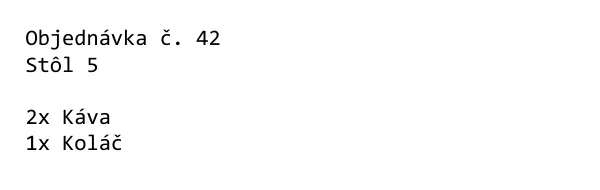
The text must not contain control characters other than line breaks. In .NET, check it with the
ReceiptText.IsValid(text) method.
Business header
With a cash register code in cashRegisterCode, eKasa prints a header with the business’s identification data
before the text: name, address, IČO, DIČ, IČ DPH and the cash register code.
{
  "text": "Objednávka č. 42\nStôl 5\n\n2x Káva\n1x Koláč",
  "cashRegisterCode": "88812345678900001",
  "contentFlags": []
}
var context = new TextPrintContext(
"Objednávka č. 42\nStôl 5\n\n2x Káva\n1x Koláč",
NonfiscalReceiptContentFlags.None,
CashRegisterCode: "88812345678900001");
Price information
If the text contains prices of goods or services, for example a bill before payment, the law requires the receipt
to be marked with the words “NEPLATNÝ DOKLAD” (invalid receipt) on every third line
(§ 5(3)(t) of Act No. 384/2025 Coll.).
This way the customer does not mistake such a receipt for a cash register receipt. eKasa adds the mark itself when
you include priceInformation in contentFlags.
{
  "text": "Účet pred zaplatením\nStôl 5\n\n2x Káva         8,00\n1x Koláč        3,00\n\nSpolu          11,00 EUR",
  "cashRegisterCode": "88812345678900001",
  "contentFlags": ["priceInformation"]
}
var context = new TextPrintContext(
"Účet pred zaplatením\nStôl 5\n\n2x Káva 8,00\n1x Koláč 3,00\n\nSpolu 11,00 EUR",
NonfiscalReceiptContentFlags.PriceInformation,
CashRegisterCode: "88812345678900001");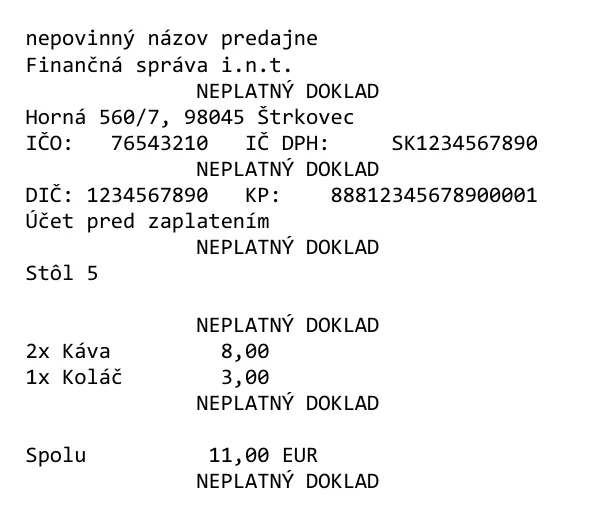
contentFlags |
When | Result |
|---|---|---|
[] |
text without prices: an order, a note, a confirmation | text without the mark |
["priceInformation"] |
text with prices: a bill before payment, an offer | “NEPLATNÝ DOKLAD” on every third line |
missing or null |
as with priceInformation, so the mark is not left out by mistake |
The contentFlags property is available from version 8.
Formatting
eKasa wraps the text according to the printer’s number of characters per line, so that a line never breaks in the middle of a word. If you compose columns, for example a name and a price, find out the number of characters per line in advance:
GET http://localhost:3010/api/v1/printers/pos/infoPrinterInfo printerInfo = await client.GetPrinterInfoAsync(PrinterName.Pos, cancellationToken);The eKasa settings are not enough for this. The actual number of characters depends on the paper width of the built-in printer or on the device model and, with automatic printer selection, also on whether an external printer is connected. Details are in the article Printer information.
The text can also contain bold type, alignment, QR codes or barcodes. You insert them with so-called tokens; see Tokens and text formatting.