QR payments need eKasa version 8.0 or newer, on Linux 9.0 or newer. Before the first payment, fill in the details of the account where the business receives payments in the eKasa settings, and try a payment.
Settings
In the service’s web interface, the settings are under Systém → Nastavenia (System → Settings), on the
QR platby (QR payments) tab. With the .NET library, they are in the QrPayments part of the client
configuration.
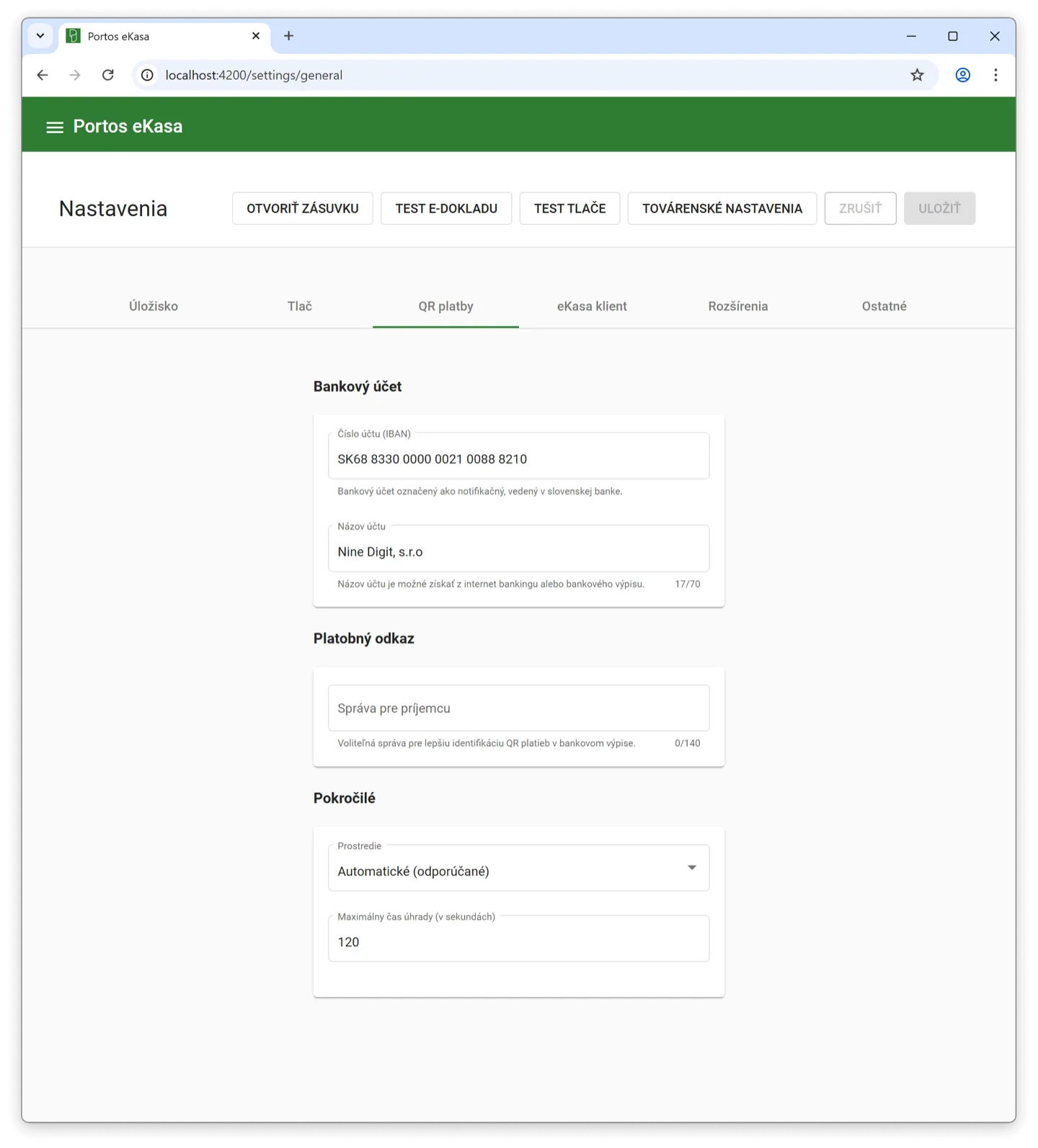
Account number (IBAN)
The account where the business receives instant payments. The bank must mark it as a notification account, an account for which the bank sends information about incoming payments in real time.
Account name
The name under which the bank keeps the account. It must not contain Slovak diacritics; of special characters only
+ ? / - ( ) . , : ' are allowed. The business finds it in internet banking, on a bank statement or at a branch.
Message for the recipient
Optional text shown on the bank statement. It helps match payments in accounting.
Payment test
You can try a payment without writing any code, directly in the service’s web interface.
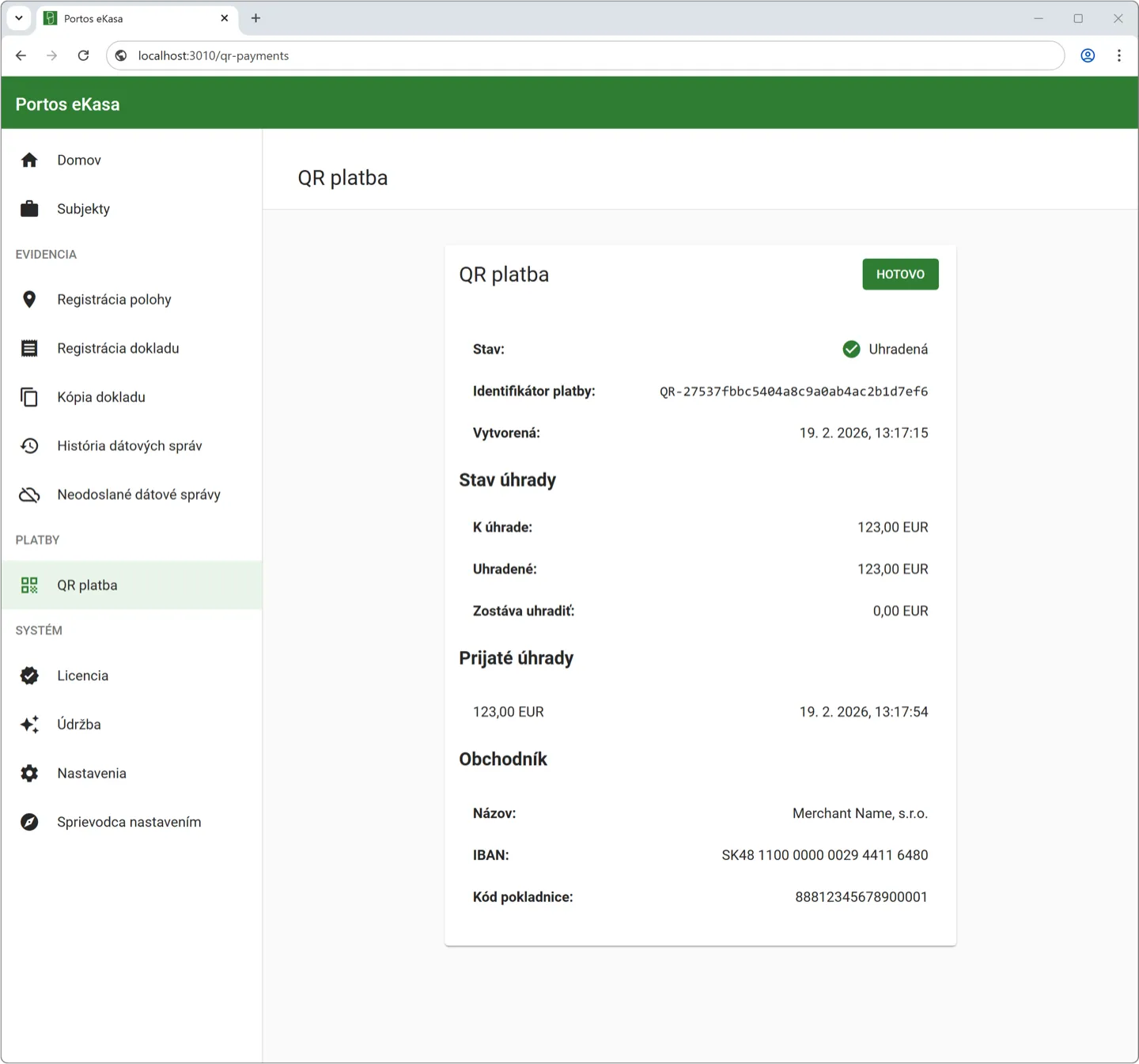
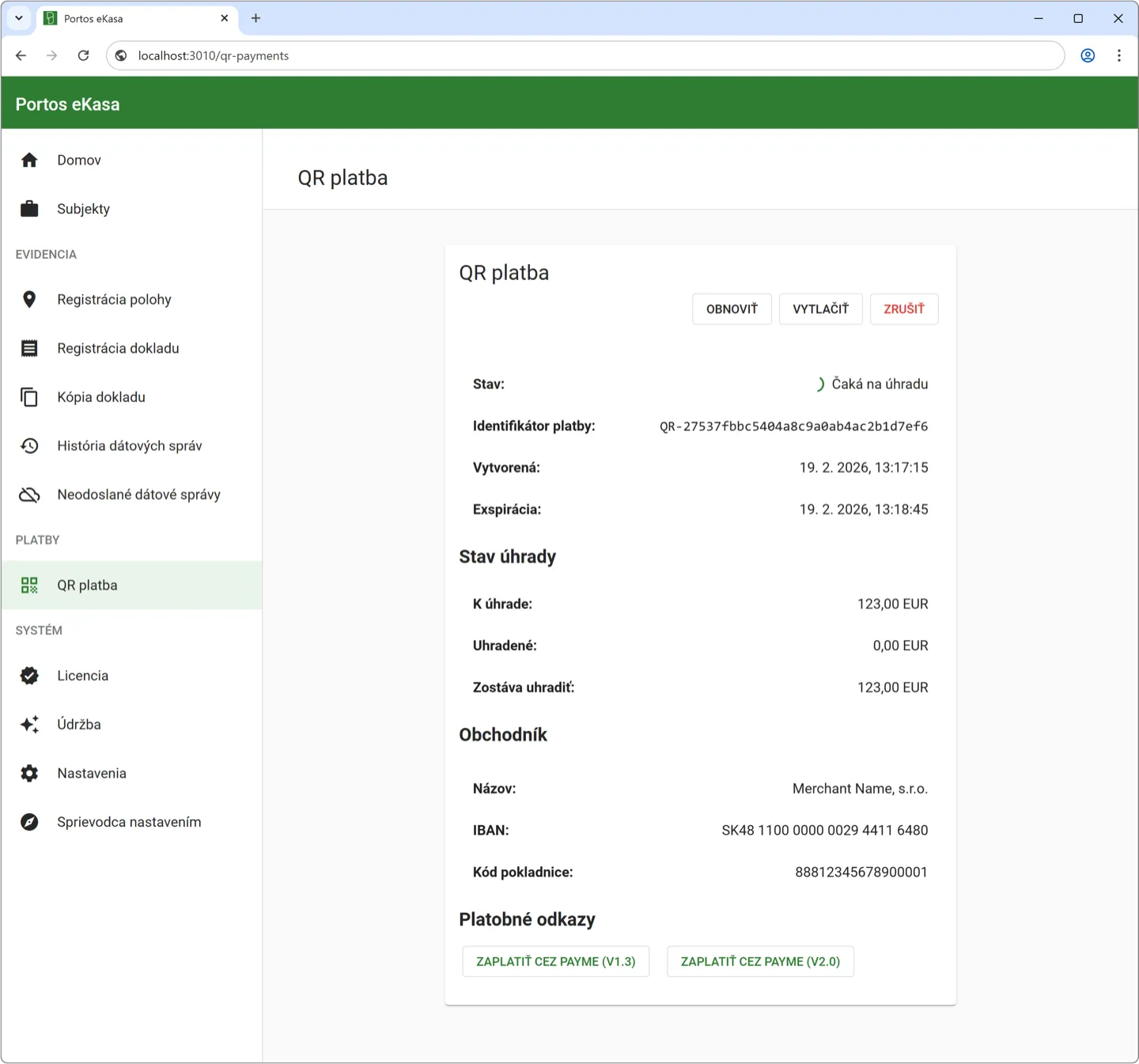
- Create a payment In the QR platba menu, enter the amount and confirm with VYTVORIŤ (Create). The first payment in the integration environment may take longer.
- Pay Click ZAPLATIŤ CEZ PAYME (V2.0) and pay according to the environment (below).
- Check the status When the notification arrives, the payment switches to Uhradená (Paid). Start another payment with HOTOVO (Done).

How you pay depends on the environment eKasa runs in:
Payment in the production environment
In the production environment you pay for real. Scan the QR code with your bank’s mobile app and confirm the payment. The amount arrives in the account set in the IBAN field, so a small amount is enough for a test.
Payment in the integration environment
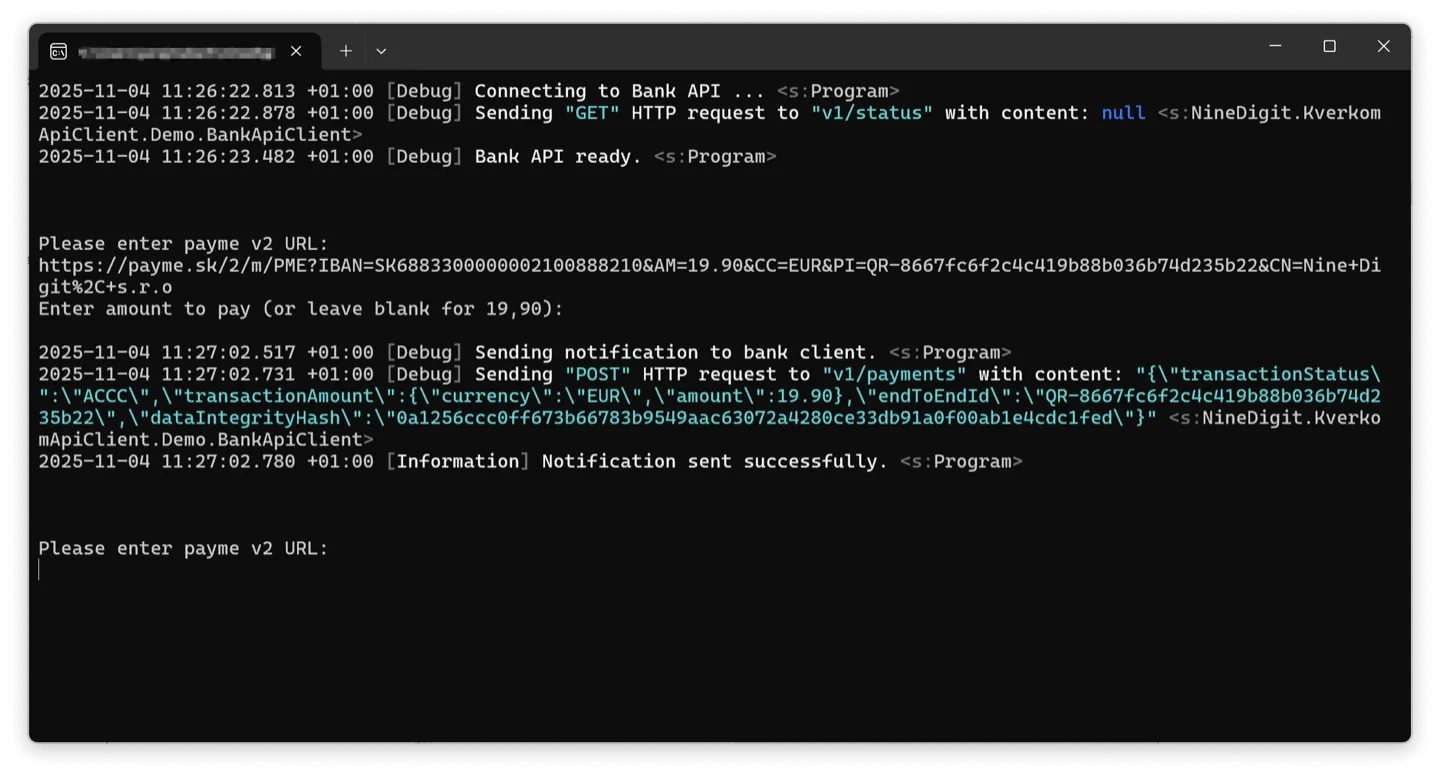
In the integration environment no real bank pays. Our test utility for Windows sends the payment:
- After clicking ZAPLATIŤ CEZ PAYME (V2.0), copy the address the browser shows.
- Run
NineDigit.eKasa.QrPayment.exeand paste the address when asked Please enter payme v2 URL. - You can change the amount to try a partial or higher payment. Confirm the original amount with
Enter. - The message Notification sent successfully. means the payment was sent.