A QR payment is a cashless payment without a payment terminal. The customer scans a QR code in their banking app and pays by instant transfer. The cash register learns about the payment from the instant payment notifier (NOP) run by the Financial Administration. eKasa talks to it for you.
A QR payment is a separate step before receipt registration. No receipt data is sent with it. Once the payment is confirmed, your software registers the receipt as with any other cashless payment.
Payment flow
sequenceDiagram
    autonumber
    participant S as Your software
    participant K as eKasa
    participant Z as Customer
    participant F as Financial Administration (NOP)
    S->>K: create payment (amount)
    K->>F: request payment ID
    F-->>K: payment ID and payment link
    K-->>S: payment ID and link
    S->>Z: QR code on a display or paper
    Z->>F: payment in the banking app
    S->>K: payment status?
    K-->>S: paid
    S->>K: receipt registration
Steps
All request and response fields with examples are in the HTTP API reference;
in the .NET library, in the QrPayment class and the IQrPaymentService service. Below is only what the reference
does not tell you.
1. Payment ID
Every QR payment has a unique ID assigned by the Financial Administration. You send the amount and the cash register code, eKasa requests a payment ID and returns it together with the payment link for the QR code. Store the ID: you can use it to get the payment status even if the process is interrupted.
POST {server_address}/api/v1/payments/qr
Content-Type: application/json

{
  "amount": 19.90,
  "cashRegisterCode": "88812345678900001",
  "comment": "textova poznamka",
  "recipientMessage": "eKasa QR platba"
}| Result | What to do |
|---|---|
201 Created |
The payment ID is in transactionId, the payment link in links. |
500, code -701 |
The payment could not be created; repeat the request. |
IQrPaymentService qrPaymentService = client.QrPaymentService;

var request = new QrPaymentRequest(
    cashRegisterCode: "88812345678900001",
    amount: 19.90m,
    comment: "textova poznamka",
    recipientMessage: "eKasa QR platba");

IQrPaymentSession session = await qrPaymentService
    .InitiatePaymentAsync(request, cancellationToken);

QrPaymentTransactionId transactionId = session.Payment.TransactionId;| Result | What to do |
|---|---|
session.Payment |
the current payment, the ID is in TransactionId; create the payment link with CreatePaymentLink(QrPaymentLinkScheme.PaymeVersion2Point0) |
session.Completion |
a task that completes when the payment reaches a final state (step 3) |
QrPaymentInitializationException |
the payment could not be created; create it again |
Optional data:
comment: a note for the payment; eKasa sends it to the instant payment notifier (NOP) when the payment ID is generated.recipientMessage: a message for the recipient in the payment link, shown on the bank statement. If it is missing, the value from the settings is used.
2. QR code for the customer
The QR code contains a Payme payment link following the
SBA standard, found in the links property of the
payment creation response. The QR code can be shown by:
- your software on the cash register display or a customer display,
- eKasa, if your software cannot do it. It prints the QR code on the cash register printer as a paper slip, so QR payments need no extra hardware:
POST {server_address}/api/v1/payments/qr/{transactionId}/render
Content-Type: application/json

{
  "rendererName": "posPrinter"
}
The response 204 No Content means the QR code is printed. If the payment does not exist, 404 Not Found is
returned.
await qrPaymentService.RenderPaymentAsync(
    transactionId, QrPaymentRendererName.PosPrinter, cancellationToken);
If the payment does not exist, the method throws QrPaymentNotFoundException.
eKasa has no other way of showing the QR code than the cash register printer (posPrinter) yet. You can print your
own paper output with a QR code as a non-fiscal receipt with a QR code token (see
Token syntax).
3. Waiting for the payment
Your software asks eKasa for the payment status until the confirmation arrives or the waiting time runs out. You set the waiting time in your software. The law does not specify it; from experience we recommend 90 seconds. The cashier should also be able to stop waiting.
GET {server_address}/api/v1/payments/qr/{transactionId}?await=trueWith await=true, the response returns only after the payment reaches a final state; without it (default false)
it returns immediately with the current state. The state is in the status property. If the payment is not found,
404 Not Found is returned (-702).
// the current state at any time
QrPayment current = session.Payment;

// waiting for a final state: Paid, Overpaid or Expired
QrPayment payment = await session.Completion;
QrPaymentStatus status = payment.GetStatus(DateTimeOffset.Now);

// payment state by ID, for example after your software restarts
QrPayment? found = await qrPaymentService.FindPaymentAsync(transactionId, cancellationToken);
The session from step 1 tracks the payment state continuously. FindPaymentAsync returns null if the payment is
not found.
Payment states
The final states are paid, overpaid and expired. In the .NET library, QrPaymentStatus has the same values
starting with a capital letter (Pending, Paid, …).
| Value | Description |
|---|---|
pending |
The payment has been created, but no incoming payment has been received yet. |
partiallyPaid |
A partial payment has been received, but the full amount is not yet covered. |
paid |
The payment has been fully settled: the received amount equals the requested amount. |
overpaid |
The received amount exceeds the requested amount (overpayment). |
expired |
The payment has expired before being fully paid. |
stateDiagram-v2
    [*] --> pending
    pending --> partiallyPaid: part of the amount
    pending --> paid: full amount
    pending --> overpaid: more than the amount
    partiallyPaid --> paid: remainder paid
    partiallyPaid --> overpaid: more than the remainder
    pending --> expired: not paid
    partiallyPaid --> expired: not fully paid
    paid --> [*]
    overpaid --> [*]
    expired --> [*]
With paid and overpaid, register the receipt for the amount actually received; with expired, continue with
step 4.
4. Payment failure notice
If the confirmation does not arrive in time or the cashier stops waiting, the cash register must issue or make available a document of non-confirmation of the payment (§ 15(3) of Act No. 384/2025 Coll.). According to the Financial Administration, the mandatory data are the date and time the payment ID was generated, the payment ID and the amount; the business’s name and tax ID (DIČ) are optional. eKasa prints all of them, the name and tax ID in the business header:
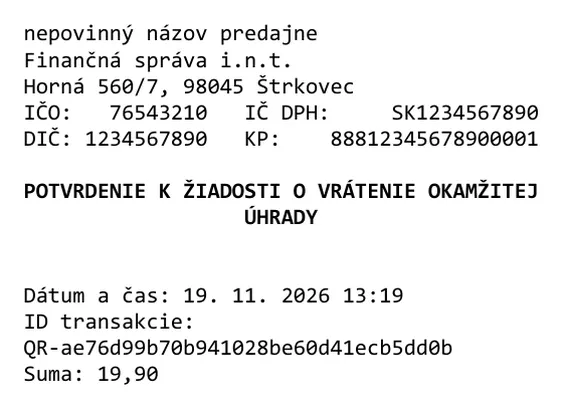
POST {server_address}/api/v1/payments/qr/{transactionId}/print_non_delivery_noticeThe request has no body. The response 204 No Content means the notice is printed, 404 Not Found that the payment
does not exist.
if (status == QrPaymentStatus.Expired)
{
    await qrPaymentService.PrintPaymentNonDeliveryNoticeAsync(
        transactionId, cancellationToken);
}
If the payment does not exist, the method throws QrPaymentNotFoundException.
Trying a payment
You can try a payment without writing any code in the eKasa web interface. In the integration environment, our test utility pays it instead of a bank, so you can also try a partial payment or an overpayment. The procedure is in Setup and test.
Full .NET example
The whole payment through the .NET library: creating it, printing the QR code, waiting for the result and the non-confirmation notice.
IQrPaymentService qrPaymentService = client.QrPaymentService;

var request = new QrPaymentRequest(cashRegisterCode: "88812345678900001", amount: 19.90m);

// 1. ID
IQrPaymentSession session = await qrPaymentService.InitiatePaymentAsync(request, cancellationToken);
QrPaymentTransactionId transactionId = session.Payment.TransactionId;

// 2. QR
await qrPaymentService.RenderPaymentAsync(transactionId, QrPaymentRendererName.PosPrinter, cancellationToken);

// 3. Paid, Overpaid, Expired
QrPayment payment = await session.Completion;
QrPaymentStatus status = payment.GetStatus(DateTimeOffset.Now);

if (status == QrPaymentStatus.Expired)
{
    // 4. Payment not confirmed, printing the notice.
    await qrPaymentService.PrintPaymentNonDeliveryNoticeAsync(transactionId, cancellationToken);
}
else if (status == QrPaymentStatus.Overpaid)
{
    Console.WriteLine($"The customer overpaid by {payment.OverpaidAmount}.");
}
Frequently asked questions
Is a QR payment tied to a receipt?
No. It is a separate process before receipt registration, and no receipt data is sent when the payment is created. Once the payment is confirmed, your software registers the receipt.
How long should I wait for the payment?
The law does not specify it. From experience we recommend 90 seconds. You set the time in your software.
What if the customer does not pay or the payment does not arrive in time?
The cash register prints a receipt confirming the payment was not completed. The customer can then pay another way.
Can the customer pay a different amount?
It should not be possible. Under the payment link specification, the banking app does not let the customer change the amount from the QR code. It cannot be ruled out completely, though: if someone deliberately edits the QR code, for example changes the amount in it, and scans the edited code, a payment with a different amount arrives.
Your software must therefore be prepared for it and always work with the amount actually paid, from the payment status:
partiallyPaid: only part has been paid and the payment is not settled yet. The customer can pay the rest with another QR code (the link for the remaining amount is inlinks) or another way.overpaid: more has been paid; the difference is inoverpaidAmount. Your software must show the overpayment to the cashier so they can settle it with the customer, typically by returning it.
Register the receipt according to the amount actually received.