eKasa issues every receipt: it prints it, saves it as a PDF or sends it by e-mail. You choose the way when registering; otherwise the receipt is issued the default way from the settings (printed by default).
When registering a receipt, the parent application can specify how the receipt will be issued.
You may give the customer an electronic receipt (PDF or e-mail) instead of a printed one only if the customer agrees and asks for it before the receipt is printed (§ 8(1) of Act No. 384/2025 Coll.). There is always only one original of the receipt: either printed or electronic. The customer must get the electronic receipt right after paying, just like a printed one: sending or making it available counts as handing over the receipt, which must happen immediately.
Choosing the way of issuing is not allowed for every receipt type, as the table below shows.
| Receipt type | Receipt type identifier | Way of issuing can be chosen |
|---|---|---|
| Cash register receipt | CashRegister |
Yes |
| Paragon | Paragon |
No |
| Invoice | Invoice |
Yes |
| Paragon for an invoice payment | InvoiceParagon |
No |
| Invalid receipt | Invalid |
No |
| Cash deposit and withdrawal | Deposit, Withdraw |
No |
For receipt types marked “No”, the receipt is always issued the default way from the application settings.
You set the way of issuing with the print.printerName property.
Three options are supported:
posPaper receiptThe cash register printer prints the receipt.
pdfPDF fileeKasa creates the PDF file, your software delivers it to the customer.
emailE-maileKasa creates the PDF file and e-mails it to the customer itself.
Both electronic options create the same PDF file. They differ in who delivers it to the customer:
email |
pdf |
|
|---|---|---|
| Who delivers the receipt | eKasa e-mails it to the address from the request (options.To) |
your software: it downloads the PDF file through the API (Getting the PDF file) and delivers it itself |
| What you need | an SMTP server in the eKasa settings | handling the PDF file in your software |
| When to use it | the customer wants the receipt by e-mail and it is fine for eKasa to send it | you deliver the receipt your own way, for example to a customer portal, an app or by your own e-mail |
If the print object is not specified, the receipt is issued the default way from the application settings, a paper receipt (pos) by default.
If the eKasa system does not respond at the moment, the receipt is issued on paper even if you asked for a PDF or e-mail. See When the eKasa system does not respond.
The body of a receipt registration request, sent by the parent application to the HTTP API, contains two properties side by side at the top level:
request: information about the receipt itselfprint: information about how the receipt is issued
The print property lets you specify how the receipt is issued with these properties:
printerName: sets the way the receipt is issued.options: sets required and optional switches that affect issuing the receipt (depending on the way of issuing, see below).
Example:
{
  "request": {
    "data": { /* … receipt data */ }
  },
  "print": {
    "printerName": "pos",
    "options": { /* … issuing options */ }
  }
}
Library function client.RegisterReceiptAsync()
RegisterCashRegisterReceiptRequest request: information about the receipt itselfRegisterReceiptPrintContext printContext: information about how the receipt is issued
The printContext parameter lets you specify how the receipt is issued with these properties:
printerName: sets the way the receipt is issued.options: sets required and optional switches that affect issuing the receipt (depending on the way of issuing, see below).
pos Paper receipt
The default way of issuing a receipt.
To issue the receipt on paper, set the printerName field to pos.
The options object can contain these values:
| Name | Required | Description |
|---|---|---|
OpenDrawer |
No | Sets whether the cash drawer opens (value true) or not (value false) for this particular receipt. This lets the parent application decide for which receipt types or payment methods the cash drawer should open. If set, it takes priority over the setting in the application configuration. |
PrintLogo |
No | Sets whether the graphic logo is printed (value true) or not (value false) for this receipt. If set, it takes priority over the setting in the application configuration. |
LogoMemoryAddress |
No | Sets which logo is printed for this receipt. If set, it takes priority over the setting in the application configuration. |
{
  "print": {
    "printerName": "pos",
    "options": {
      "OpenDrawer": false,
      "PrintLogo": true,
      "LogoMemoryAddress": 1
    }
  },
  "request": {
    "data": {
      "cashRegisterCode": "88812345678900001",
      "items": [
        {
          "type": "positive",
          "name": "Coca Cola",
          "quantity": {
            "amount": 1.00,
            "unit": "ks"
          },
          "unitPrice": 1.99,
          "price": 1.99,
          "vatRate": 23.00
        }
      ],
      "payments": [
        {
          "name": "Hotovosť",
          "amount": 1.99
        }
      ]
    }
  }
}
// we can override default client configuration with these optional fields:
var printOptions = new PosPrintingOptions()
{
// this will override the "configuration.Printers.Pos.Drawer.Enabled"
// for this specific receipt.
OpenDrawer = false,
// this will override the "configuration.Printers.Pos.Logo.Enabled"
// for this specific receipt.
PrintLogo = true,
// this will override the "configuration.Printers.Pos.Logo.MemoryAddress"
// for this specific receipt.
LogoMemoryAddress = 1
};
// prepare print context object from printer name and printing options
var printContext = RegisterReceiptPrintContext.CreatePos(printOptions);
// wrap receipt to request
var receiptRequest = new RegisterCashRegisterReceiptRequest(receipt);
// and register receipt
var result = await client.RegisterReceiptAsync(receiptRequest, printContext, cancellationToken);pdf Electronic receipt as a PDF file
With printerName pdf eKasa does not print the receipt but creates a PDF file from it. Your software delivers it
to the customer, for example by e-mail, in an app or on the web:
- Register the receipt with
"printerName": "pdf". - Download the PDF file through the API.
- Deliver it to the customer right away, for example by e-mail or a link in your app. The customer must get it immediately after paying, not later in a batch. If you need it for longer, store it on your side.
The options object can contain:
| Name | Required | Description |
|---|---|---|
OpenDrawer |
no | Opens (true) or does not open (false) the cash drawer for this receipt. Takes priority over the application setting. |
{
  "print": {
    "printerName": "pdf"
  },
  "request": {
    "data": {
      "cashRegisterCode": "88812345678900001",
      "items": [
        {
          "type": "positive",
          "name": "Coca Cola",
          "quantity": {
            "amount": 1.00,
            "unit": "ks"
          },
          "unitPrice": 1.99,
          "price": 1.99,
          "vatRate": 23.00
        }
      ],
      "payments": [
        {
          "name": "Hotovosť",
          "amount": 1.99
        }
      ]
    }
  }
}
// the only option for the pdf printer is OpenDrawer; without options
// the application configuration is used.
var printContext = RegisterReceiptPrintContext.CreatePdf();
// wrap receipt to request
var receiptRequest = new RegisterCashRegisterReceiptRequest(receipt);
// and finally, register the receipt
var result = await client.RegisterReceiptAsync(receiptRequest, printContext, cancellationToken);
// PDF file is created now, by default in the "receipts" folder
// of the application working directory.Getting the PDF file
You download the PDF file by the receipt identifier, the same way as when looking up a receipt. Always
include the cash register code (cashRegisterCode). The receipt is found even when it is missing from the
index table.
The request GET /api/v1/printers/pdf/receipt returns the PDF file. If the receipt or its file does not exist, the
response has HTTP status 404. All parameters are described in the HTTP API reference.
| Identify the receipt by | Parameters |
|---|---|
| external identifier | externalId |
| internal identifier | id |
| receipt number | year, month and receiptNumber |
curl -o receipt.pdf "http://localhost:3010/api/v1/printers/pdf/receipt?cashRegisterCode=88812345678900001&externalId=order-1024"The client.GetPdfReceiptStreamAsync method returns the PDF file as a Stream. You identify the receipt with a
SingleReceiptRegistrationFilter: by external identifier, internal identifier or receipt number.
SingleReceiptRegistrationFilter filter = new SingleReceiptRegistrationFilter(
    cashRegisterCode: "88812345678900001",
    receiptNumberId: new ReceiptNumberId(year: 2026, month: 1, number: 1));

Stream stream = await client.GetPdfReceiptStreamAsync(filter, cancellationToken);
Where eKasa stores PDF files
PDF files are created on the disk of the device where eKasa runs, in the folder from the
printers.pdf.outputDirectory setting. The default value receipts is relative to the application working
directory:
| System | Folder |
|---|---|
| Windows | C:\ProgramData\NineDigit\Portos.eKasa\receipts\ |
| macOS and Linux | /etc/NineDigit/Portos.eKasa/receipts/ |
The file is named {cash register code}_{year and month}_{receipt number}.pdf, for example
88812345678900001_202601_000123.pdf.
eKasa deletes PDF files automatically after 31 days; after that you cannot download them through the API. If you need the receipt for longer, download it right after registration and store it in your software.
email Electronic receipt as an e-mail
To issue the receipt as an e-mail, set the printerName field to email.
The options object can contain these values:
| Name | Required | Description |
|---|---|---|
To |
Yes | E-mail address of the recipient (the e-mail the receipt is sent to). The receipt is sent to one address only: a carbon copy (CC) or a blind carbon copy (BCC) is not possible, because the law knows only one original of a cash register receipt. If you also need to keep the receipt (for example in an archive), use pdf: you download the PDF file and both deliver it to the customer and keep it yourself. |
Subject |
No | Sets the e-mail subject used for this particular receipt. If set, it takes priority over the setting in the application configuration (printers.email.subject). |
Body |
No | Sets the e-mail body used for this particular receipt. If set, it takes priority over the setting in the application configuration (printers.email.body). |
RecipientDisplayName |
No | Sets the display name of the e-mail recipient. |
OpenDrawer |
No | Sets whether the cash drawer opens (value true) or not (value false) for this particular receipt. This lets the parent application decide for which receipt types or payment methods the cash drawer should open. If set, it takes priority over the setting in the application configuration. |
{
  "print": {
    "printerName": "email",
    "options": {
      "To": "john.doe@example.com",
      "Subject": "Váš e-doklad",
      "Body": "Ďakujeme za nákup.",
      "RecipientDisplayName": "John Doe"
    }
  },
  "request": {
    "data": {
      "cashRegisterCode": "88812345678900001",
      "items": [
        {
          "type": "positive",
          "name": "Coca Cola",
          "quantity": {
            "amount": 1.00,
            "unit": "ks"
          },
          "unitPrice": 1.99,
          "price": 1.99,
          "vatRate": 23.00
        }
      ],
      "payments": [
        {
          "name": "Hotovosť",
          "amount": 1.99
        }
      ]
    }
  }
}
// required parameter - recipient's e-mail address
var printOptions = new EmailPrintingOptions("john.brown@example.com")
{
// optional parameter. this will override
// the "configuration.Printers.Email.Subject"
// for this specific receipt.
Subject = "Your receipt, mr. Brown!",
// optional parameter. This will override
// the "configuration.Printers.Email.Body"
// for this specific receipt.
Body = "Thank you for your purchase.",
// optional parameter - recipient's display name
RecipientDisplayName = "John Brown"
};
// prepare print context object from printing options
var printContext = RegisterReceiptPrintContext.CreateEmail(printOptions);
// wrap receipt to request
var receiptRequest = new RegisterCashRegisterReceiptRequest(receipt);
// and register receipt
var result = await client.RegisterReceiptAsync(receiptRequest, printContext, cancellationToken);System behaviour after a failed e-mail
If the receipt is recorded and written to the storage but sending the e-mail fails, the receipt registration succeeds: eKasa returns the usual registration result and reports no error. It writes the sending failure to the log and keeps the receipt PDF in the same folder as for an electronic receipt in PDF form (see Getting the PDF file). After a successful send, the PDF file is deleted.
eKasa does not retry the e-mail: the same receipt must not be issued more than once. If the e-mail was not sent, give the receipt to the customer another way, for example print a receipt copy.
You find the cause in the service logs (in the web interface, menu Systém → Údržba (System → Maintenance)). The most common causes are:
- connection to the server: check the SMTP server address and port; if the server does not support SSL, choose Použiť TLS, ak je k dispozícii (Use TLS if available) in the Typ pripojenia (Connection type) field,
- sign-in: check the e-mail account credentials,
- recipient address: the server rejected the address (
RecipientNotAccepted).
When the eKasa system does not respond
eKasa registers most receipts online: it sends the data message to the eKasa system and issues the receipt with its response. If the eKasa system does not respond within the timeout (10 seconds by default) or there is no connection, eKasa registers the receipt in offline mode. Selling continues, only the way the receipt is issued changes:
flowchart TD
    A{printerName} -->|pos| P1[Paper receipt]
    A -->|pdf or email| B{eKasa system<br/>responded?}
    B -->|yes, online| E[PDF file or e-mail]
B -->|no, offline| P2[Paper receipt<br/>OFF-LINE DOKLAD]- The receipt is on paper. The Financial Administration guidelines require a receipt registered offline to be
on paper. eKasa therefore issues it the default way from the settings (a paper receipt
posby default), even if you asked forpdforemail. No PDF file or e-mail is created, not even later when the data message is sent. - The receipt is valid. Instead of the unique identifier (UID) it carries the business signature code (PKP) and a QR code with the business verification code (OKP).
- Do not repeat anything. eKasa sends the data message to the eKasa system by itself. Do not register the receipt again.
Your software recognises an offline receipt by the result isSuccessful: null (in .NET IsSuccessful == null), see
Registration result. You can tell the cashier that the receipt was printed
and the customer should get the paper receipt, because no e-mail was sent.
If printing the paper receipt fails (for example, it is out of paper), the error
-502: PrintReceiptError is returned. The receipt is still
registered and queued, so do not send it for registration again. Once the problem is fixed, you can print a
copy of the receipt for the customer. If the customer insists on the original,
cancel the original receipt and register a new one.
The whole offline flow is described in How eKasa works.
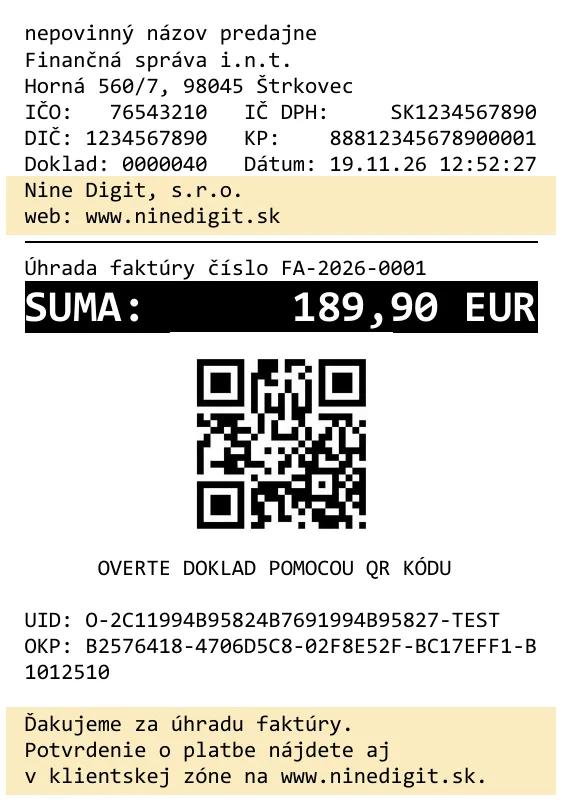
Additional texts on the receipt
The receipt has extra properties for adding additional texts to it.
| Name | Description | Note |
|---|---|---|
headerText |
Text printed right after the identification data | When tokens are used, the pageBreak token is not applied |
footerText |
Text printed at the end of the receipt, after the QR code and the receipt identifier |
Both properties support tokens for formatting and for printing QR codes and barcodes. More in the article Tokens and text formatting.
Example:
{
  "request": {
    "data": {
      "cashRegisterCode": "88812345678900001",
      "invoiceNumber": "FA-2026-0001",
      "amount": 189.90,
      "headerText": "Nine Digit, s.r.o.\nweb: www.ninedigit.sk",
      "footerText": "Ďakujeme za úhradu faktúry.\nPotvrdenie o platbe nájdete aj\nv klientskej zóne na www.ninedigit.sk."
    }
  }
}
This is what the issued receipt looks like. The header is right below the identification data of the seller and the receipt, the footer is at the end of the receipt: